MTO Mapping
For Project MTO Report TAG wise MTO reporting Contruction Work pack MTO
To standrdize MTO Reporting fom variou items across multiple Discipline, the MTo Reporting is Categorized into following headers:
Tag/Component Number => TagNumber asociated with the Component Code => Code Associated with the Component, if any, like:
- Commodity Code for Piping Components
- Catalogue Code for Electrical Components
- Catalogue cod for Special Components
- Manufacturer Catalogue Code for Intruments Length => Length of Component, like Pipe Length Volume => Volume of Component, like Volume of Concrete Item Name => Name of Components, like Specialty Number for piping component, Pipe Support Tag Number Size => Size of component, like Nominl Piping Bore, 4"x3" Weight => Weight of Component, like Steel weight Quantity => Count of components Specification => Componnt Spcification, if any like Piping Spcification number Description => Full component Description Area => Area/Loction of the component Procurment Status => Procurement Status of th Material
MTO Table Import Configure
Configure table to Impot into X4D: Excel Files uing X4D Data import:
- Excel file can be mapped uing Excel Import option in X4D Data Import Module:
For Easy identification of the Impoted table in X4D, use the following fields:
- Discipline => Selet the Discipline from Dropdown
- Data type => Type of Data for example, PipeMTO, CableMTO, CableTrayMTO etc
- TableName => i generated automatically, but it can be chnge manully as well
- Data Range =>
- For only Particular rows, use expression like 3-40;80-200;300-500 (separt
- ForImporting al Rows, mntion only Top Row Number
- Header Row => Header Row to Select Column name automatically
Save an import => this option saves the current file configuration and Impor th data as w Save and Import All => This button utomtically Imports Data from ll mapped Excel file
As the new files are received for MTO, the Save and import All rereshes all the data Impo
Table Mapping
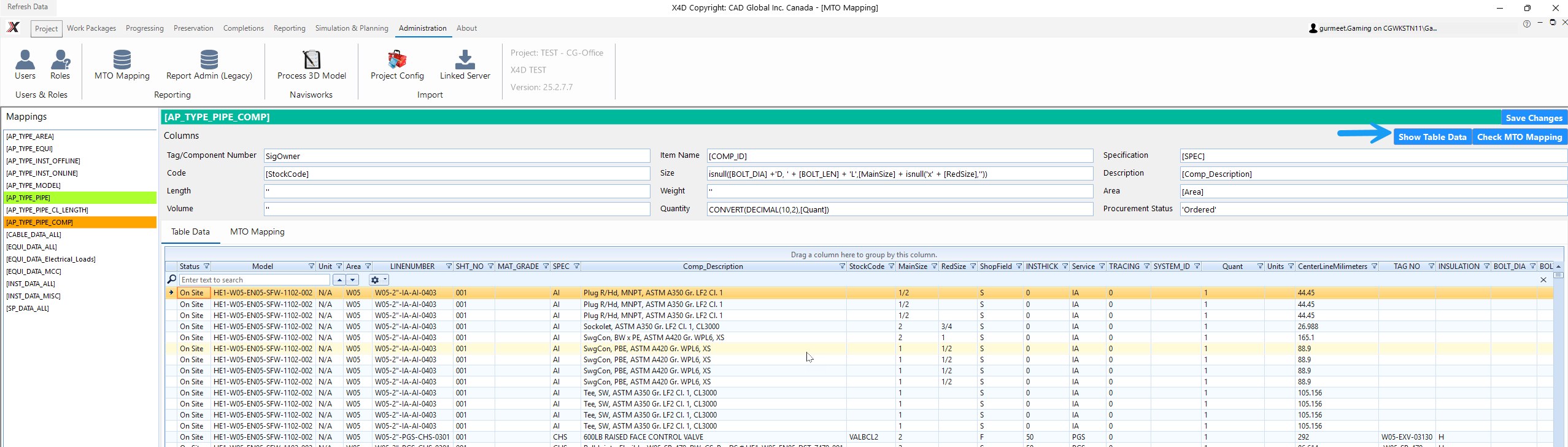
Checking MTo Mapping
3D Model Administration
Uploading 3D Model
Processing 3D Model
Import Configration
3rd Party Linked Server
Import Project Confirguration from other Projects
Loading Files on X4D
Loading Files on X4D
- Create Project folder on PCloud at the following path P:\Projects\Cadglobal