Tag Patterns
Anchors & Word Boundaries Anchors & Word Boundaries Common Escapes Common Escapes Common Escapes Common Escapes Common Escapes Common Escapes Common Examples Common Examples Common Examples Common Examples
\b
Word boundary
\B
Not a word boundary
\d \D \w \W
Any digit [0-9] Any non-digit [^0-9] Any word character [a-zA-Z0-9_] Any non-word character [^a-zA-Z0-9_] Any whitespace (spaces, tabs, \s newlines) \S Any non-whitespace Matches SSN format (e.g., ^\d{3}-\d{2}-\d{4}\$ 123-45-6789) \b[A-Za-z0-9._%+-]+@[A-Za-z0-9.-]+.[A-Z|a-z]{2,7}\b Email validation https?://\S+ Matches a URL Matches phone number \b\d{3}-\d{3}-\d{4}\b (123-456-7890)
Text Substitution examples
Category Basic Syntax Basic Syntax Basic Syntax Common Substitution Patterns Common Substitution Patterns Common Substitution Patterns Common Substitution Patterns Common Substitution Patterns Common Substitution Patterns Using Capture Groups Using Capture Groups Using Capture Groups Using Capture Groups Using Capture Groups Advanced Substitutions Advanced Substitutions Advanced Substitutions Substituting with Function
Pattern re.sub(pattern, replacement, string) re.sub(pattern, replacement, string, count=n) re.sub(pattern, replacement, string, flags=re.IGNORECASE) \d \s+ [aeiou] \bfoo\b (\d{3})-(\d{2})-(\d{4}) https?://\S+ (\w+)@(\w+).(\w+) (\d{2})/(\d{2})/(\d{4}) (\w)\1+ (\w+) (\w+) (?\<=\bMr.|Mrs.|Dr.)\s(\w+) (?\<=\d{3})\d{3}(?=\d{4}) (?\<=\b\d{4})\d+ (\w{4}) Function example: Email Censorship
Tag Patterns
Create Tag Patterns
Create Tag Patterns
- Launch X4D Data Import App, select the project and click Login
Replacement Replaces all occurrences Replaces first n occurrences Case-insensitive replacement

' ' (space) * bar XXX-XX-\3 URL_REMOVED \1[at]\2[dot]\3 \3-\1-\2 \1 \2 \1
XXX XXXX Function based replacement Custom function-based replacement
-
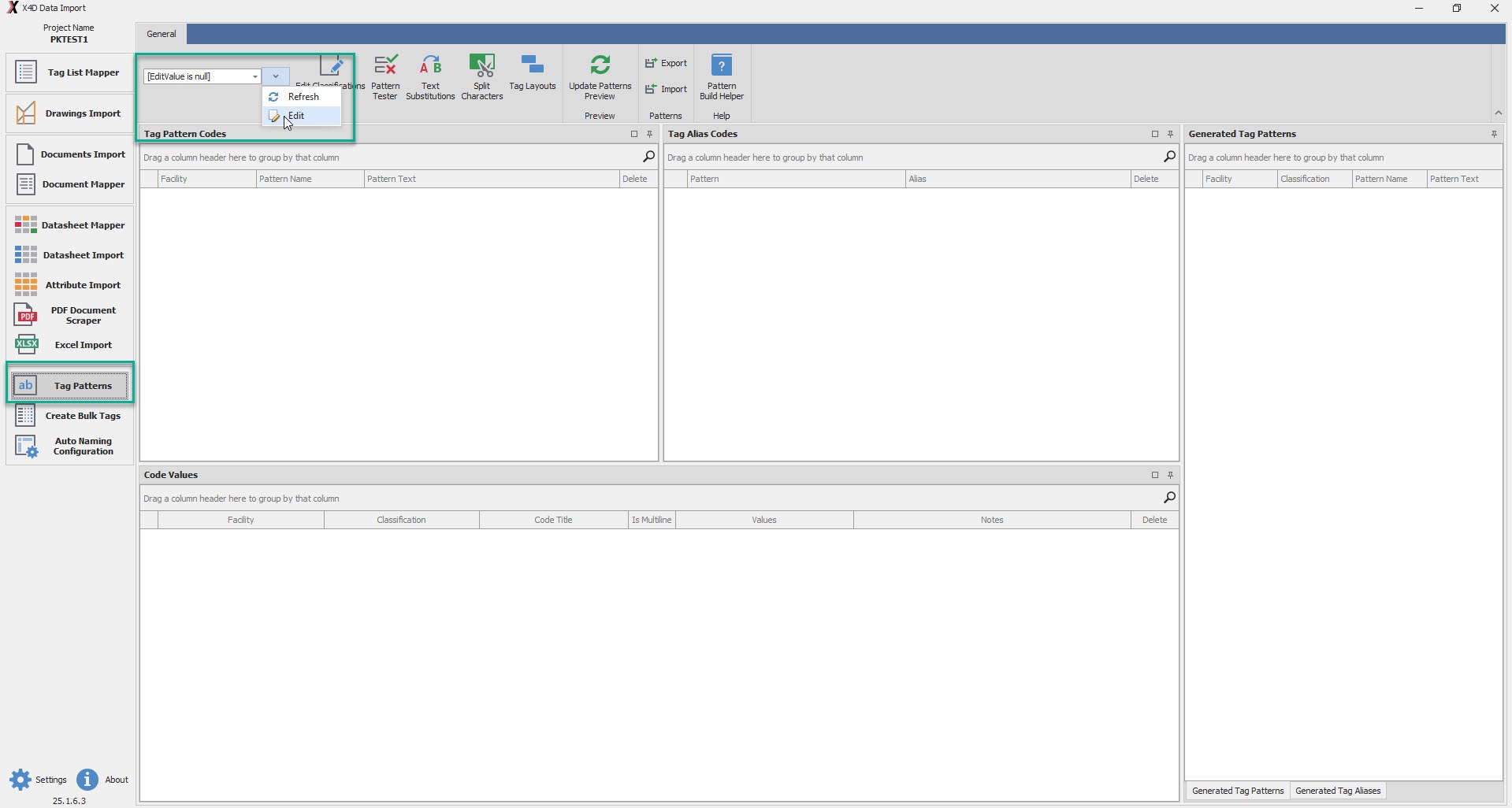
Go to Tag Patterns page and click on the arrow next to the dropdown and click edit button to add Disciplines
-
Create Disciplines and Classifications
-
Type the discipline name in the empty row and hit ENTER.
-
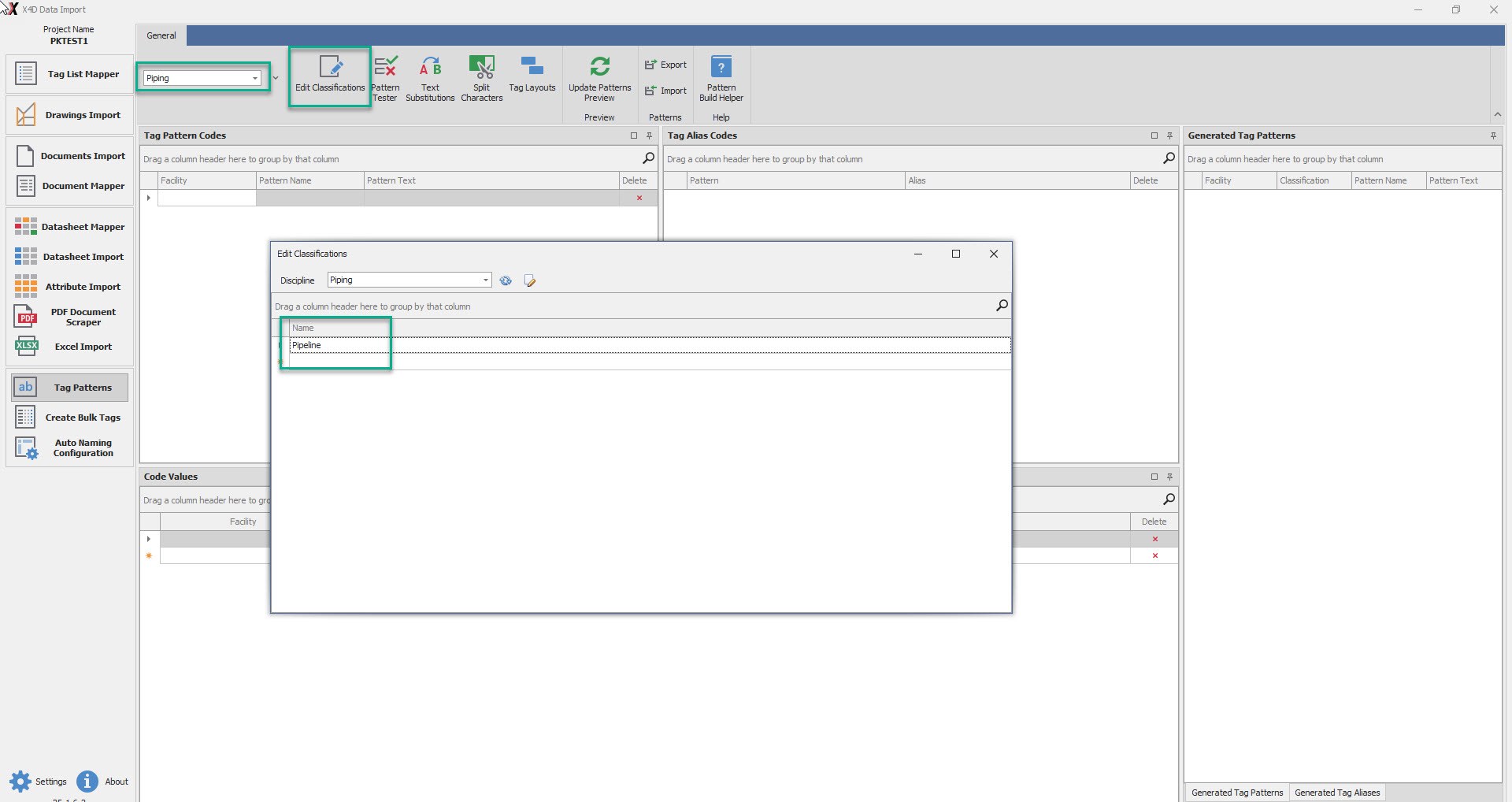
Select Discipline and click on Edit Classification
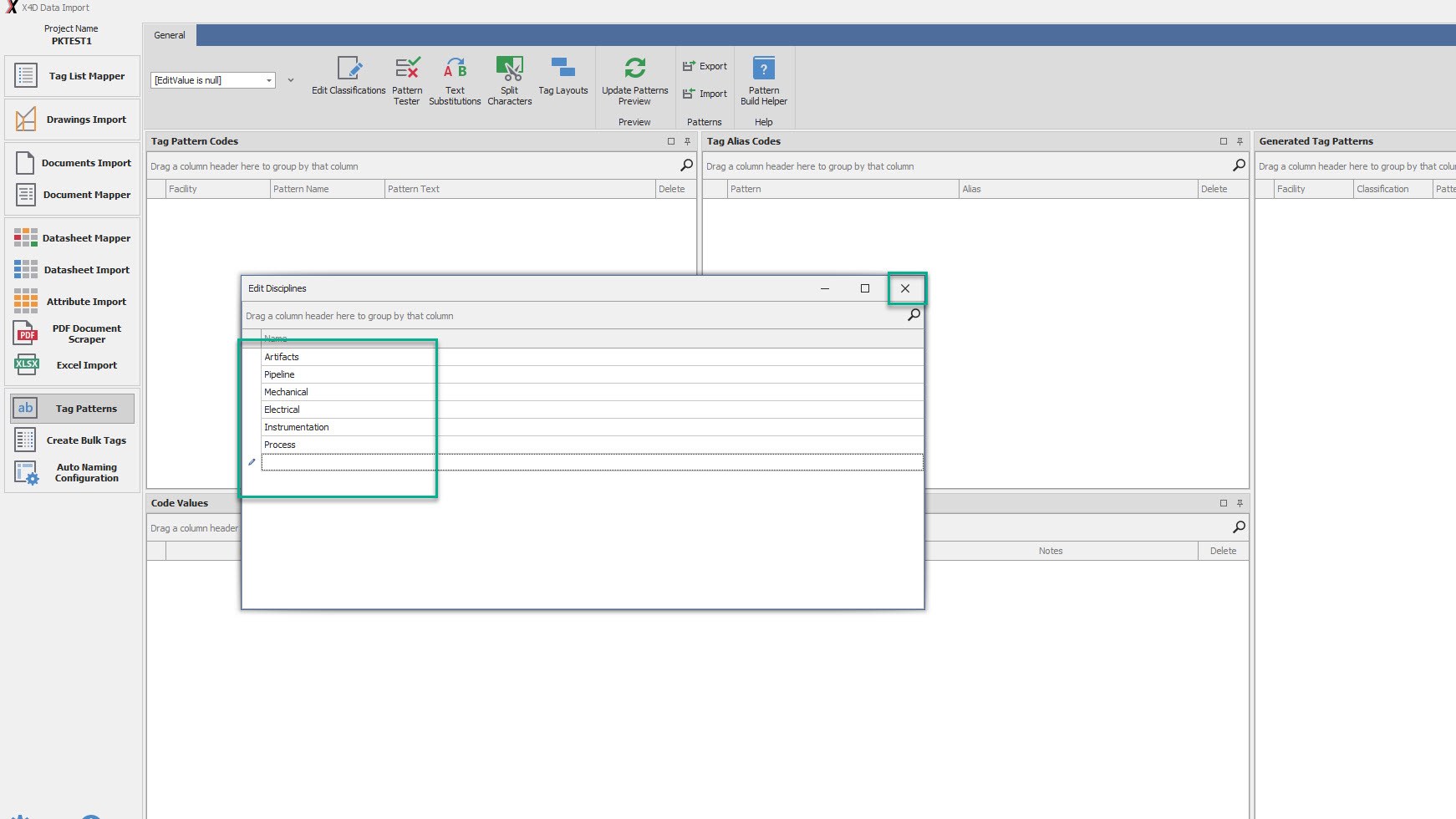
- Enter the classification name and hit Enter. Once all entered, close the window.
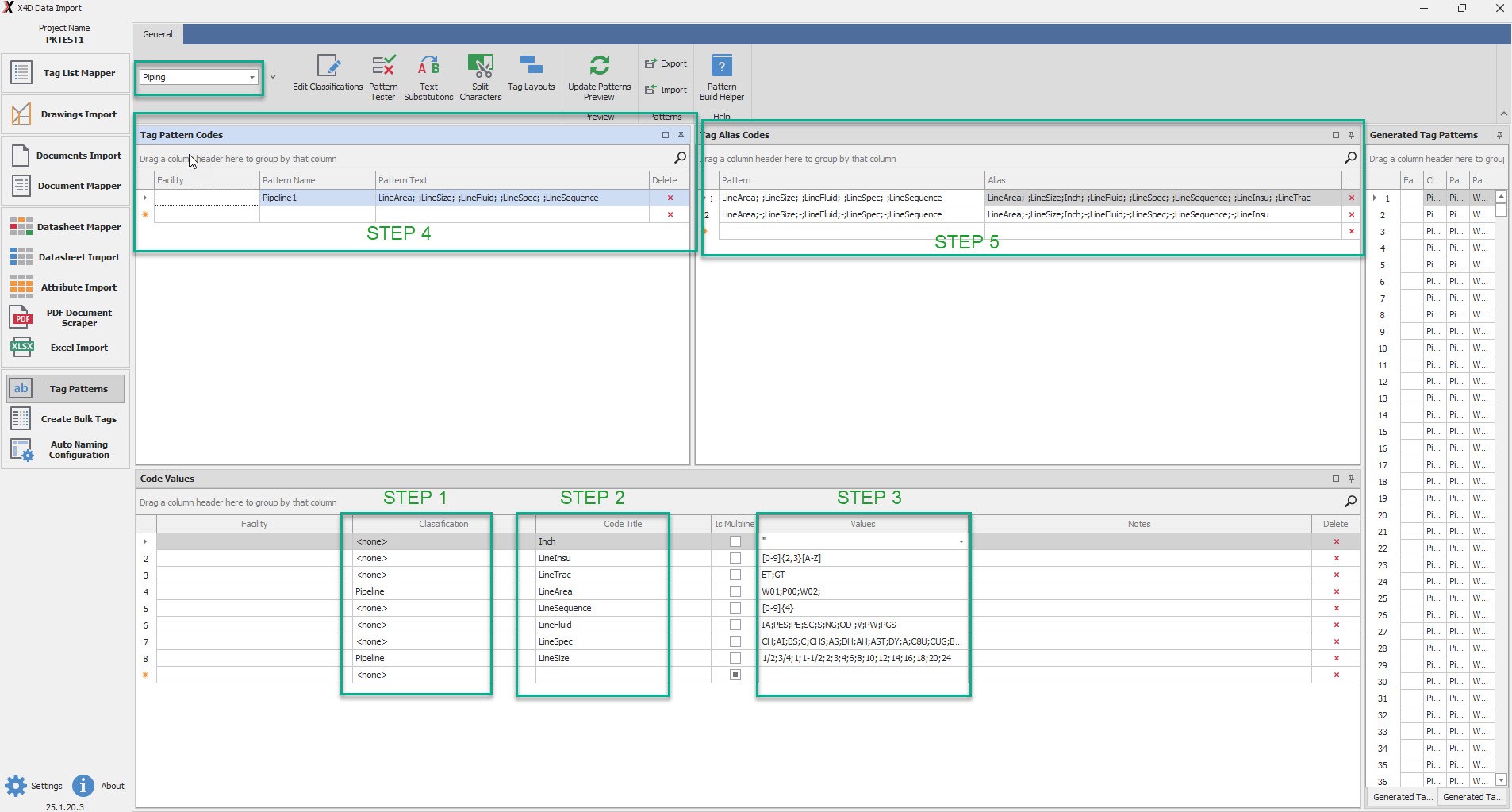
- Now under the tag patterns tab, select the Discipline.
- Now as described in the image below follow the steps and entered the required details as per the
project.
Step 1 - Define Classification for the Code Values
Step 2 - Enter the required titles in the Code Title
Step 3 - Define the desired values under the Values column
Step 4 - Under the Tag Pattern Codes, enter the Pattern Name and the Pattern Text that accurately defines the project tags
Step 5 - Enter the Pattern and Tag Pattern Alias under the Tag Alias Codes section
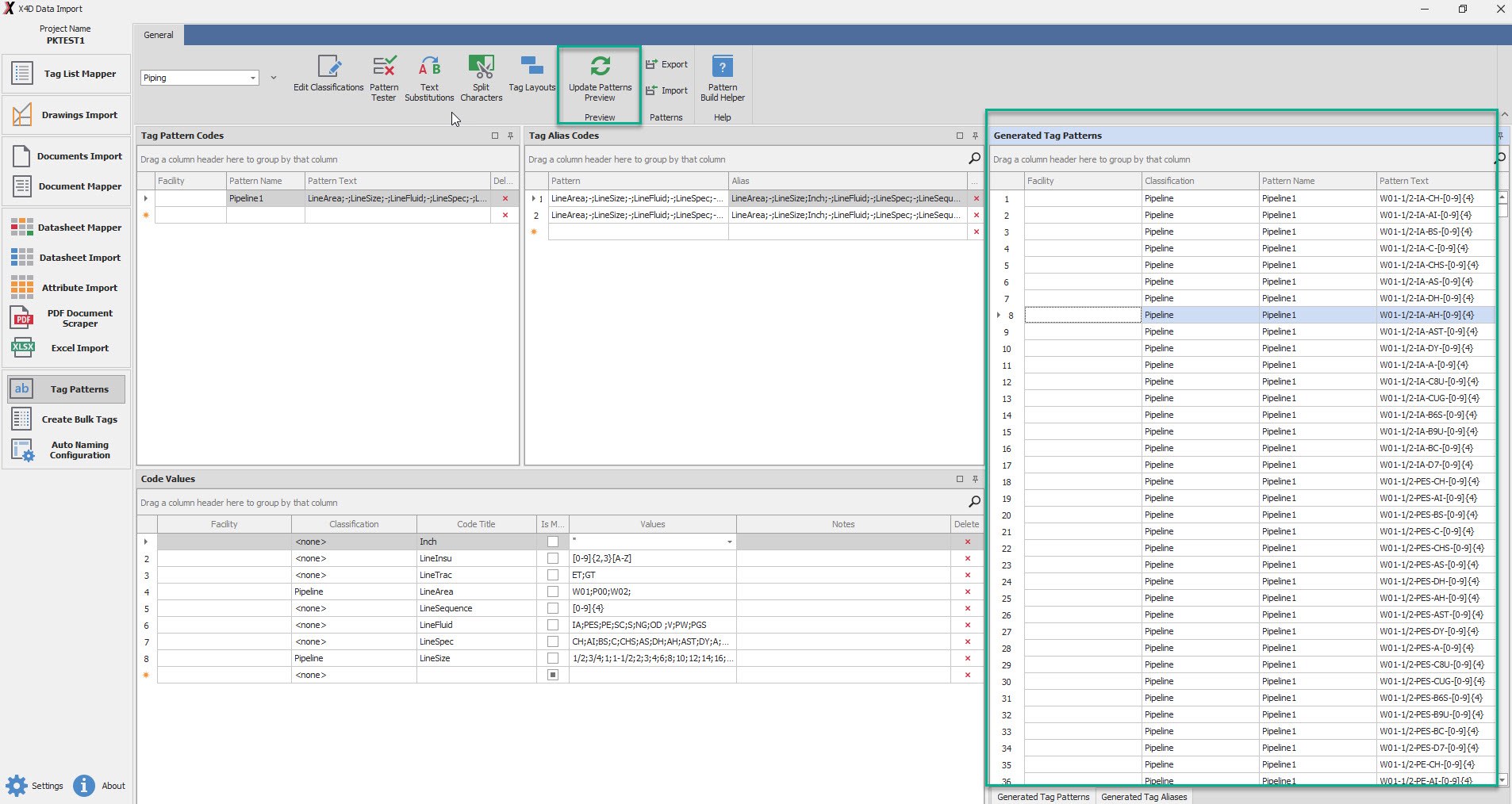
Once the above steps are completed for all the Disciplines, Click Update Patterns Preview
This should update the Generated Tag Patterns list on the left side of the screen
Create Discipline
Create Classifications
Code Values and Expressions
Create Tag Patterns
Create Tag Patterns Alias
Test Tag Patterns
How to test Tag Patterns
-
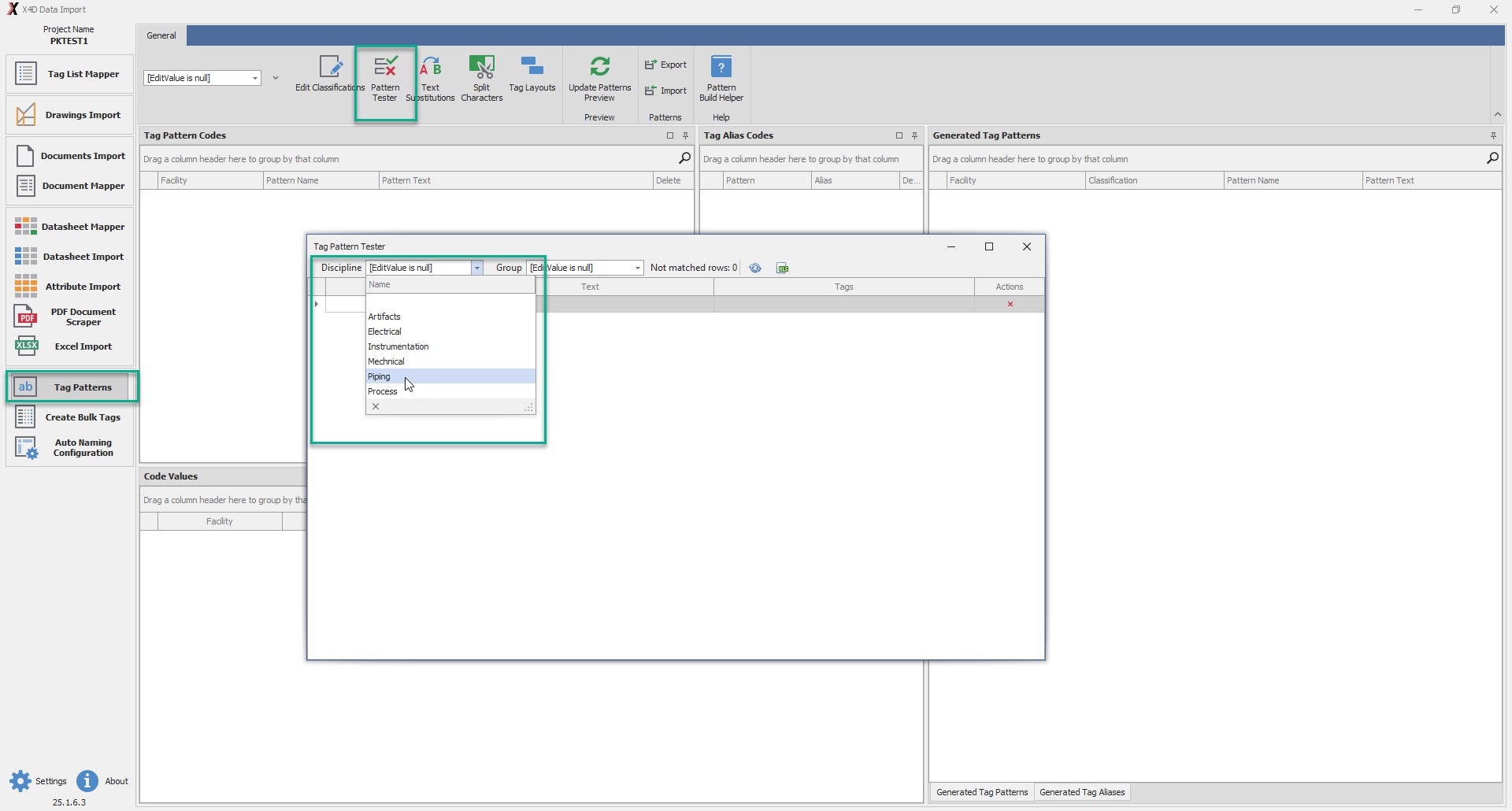
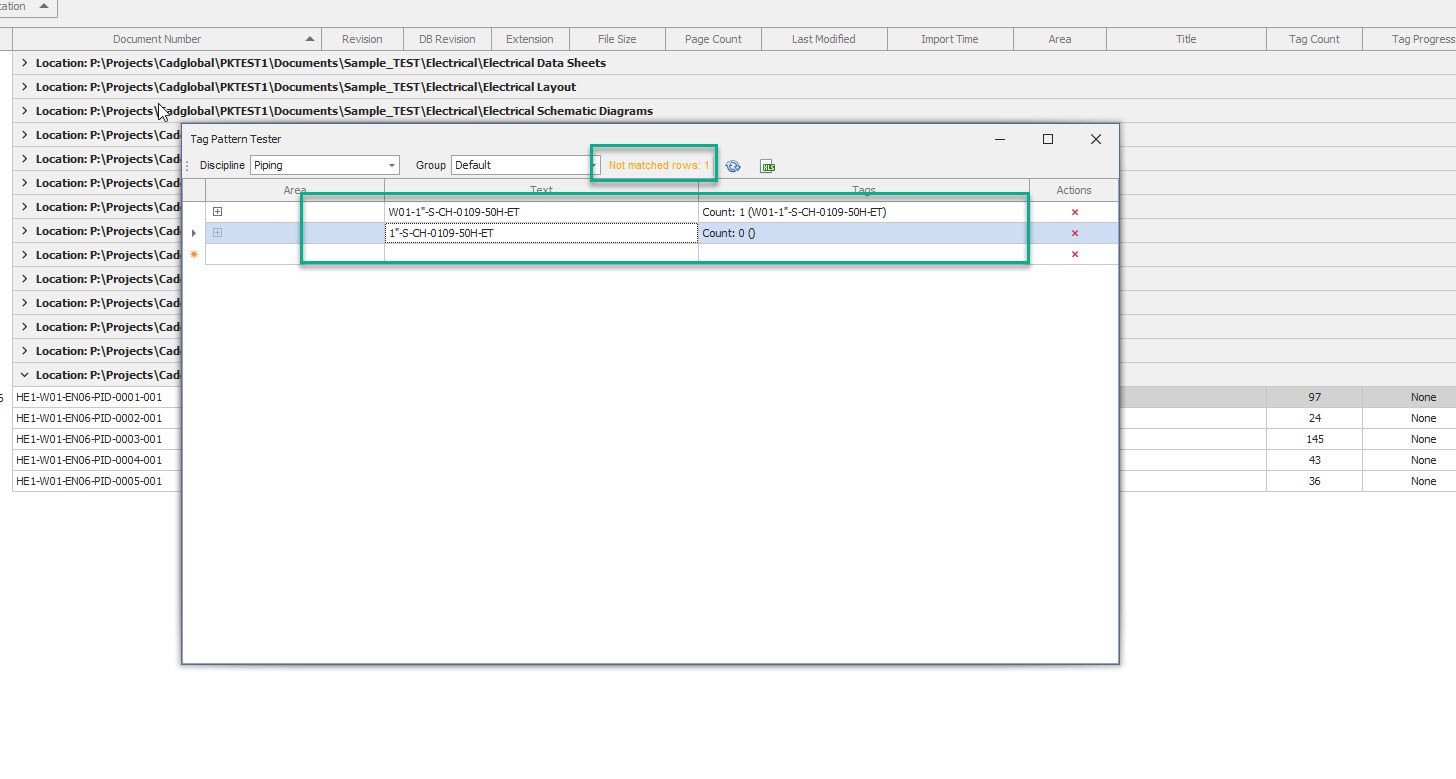
Go into the Tag Patterns tab and navigate to the Pattern Tester option on the top.
-
Select the discipline and enter the tag pattern that is to be tested.
-
If there is no match the system would return with the count 0.
-
If the entered tag matches, the system would return with a count other than 0.
Pattern Tester
Text Substitution
Split Characters
Tag Layouts
Update Pattern Preview
Pattern Share Across Projects
Export Tag Patterns
How to Export Tag Patterns How to Export Tag Patterns to your Folder so that it can be used for other Projects
-
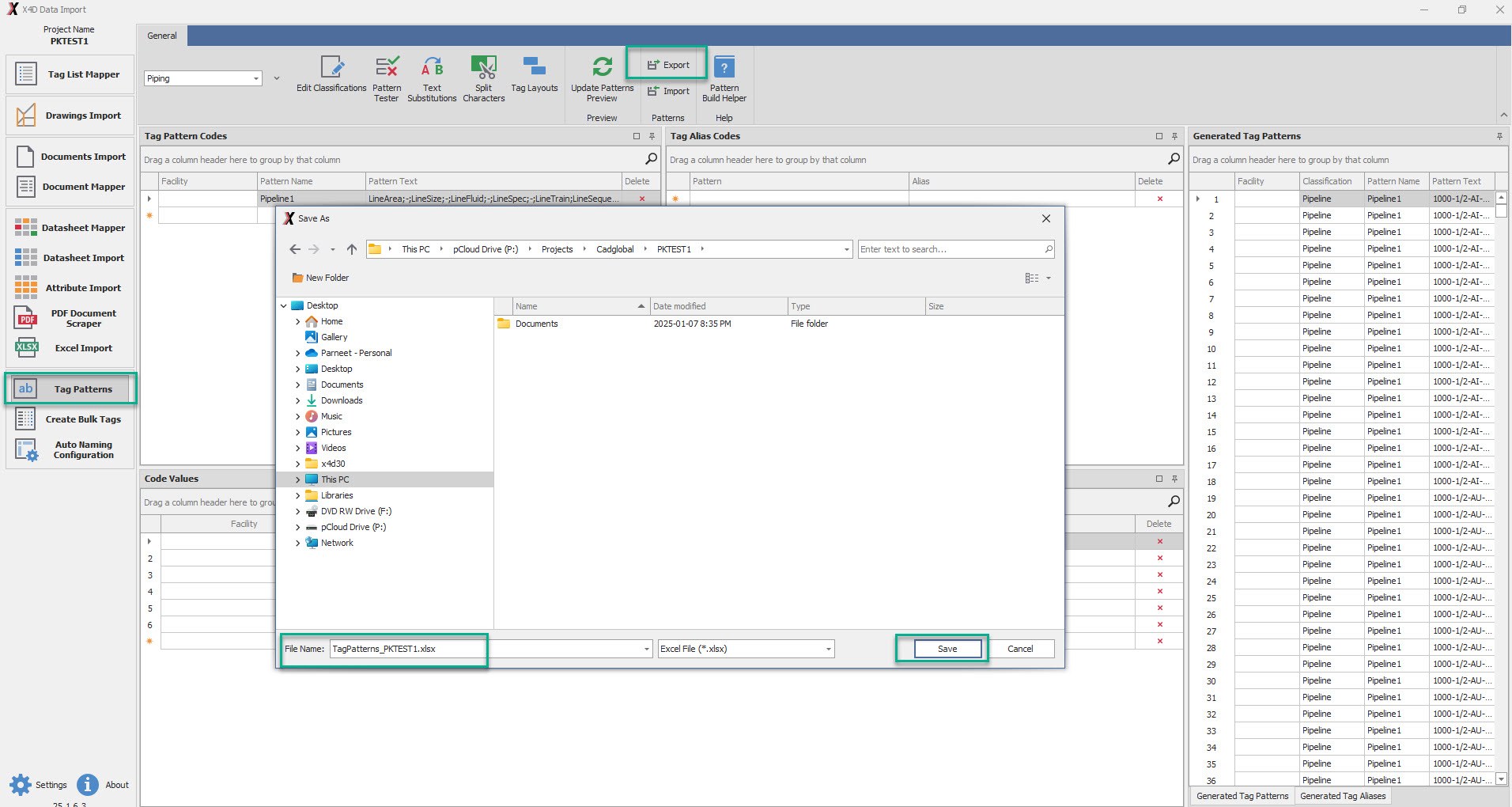
Click on the export button under the tag patterns section.
-
Name the file and select the project path to save the file.
-
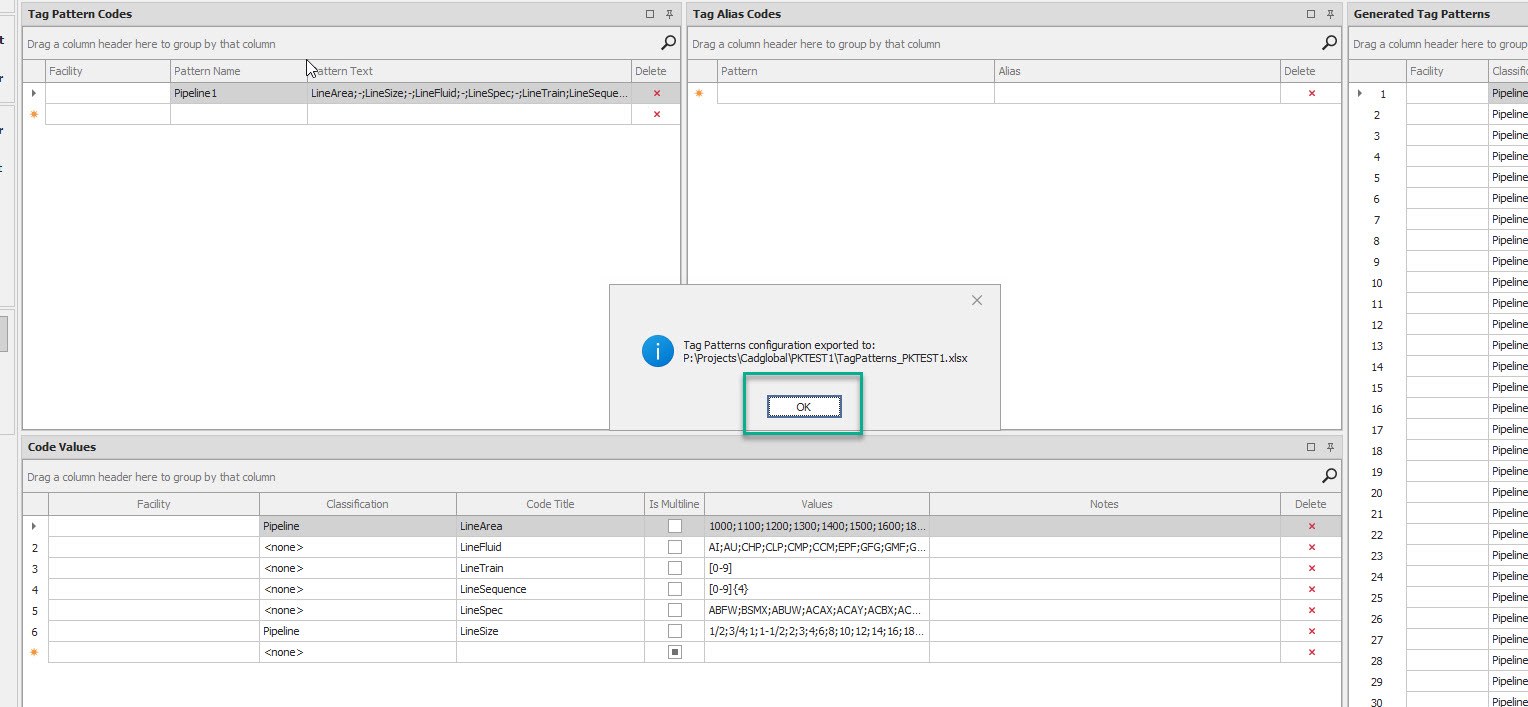
Once done, system would give a pop-up confirmation for the same.
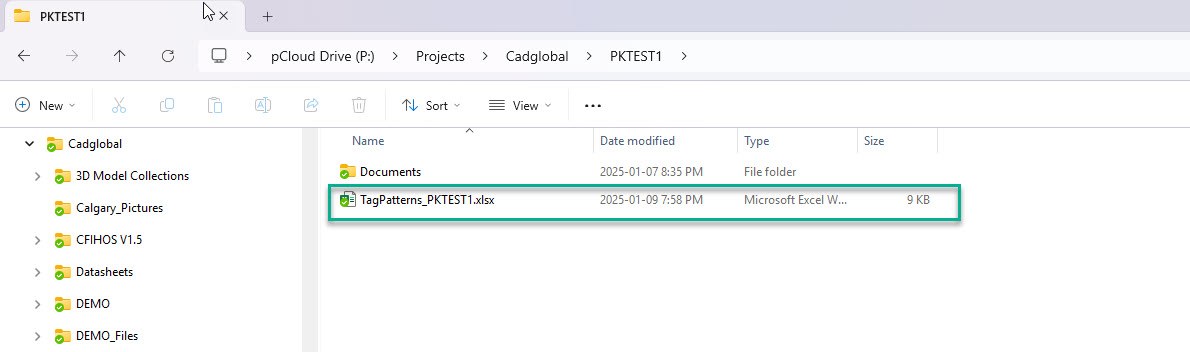
- Navigate to the path folder to confirm the .xlsx file generated after the export.
Import Tag Patterns
How To Import Tag Patterns From Another File
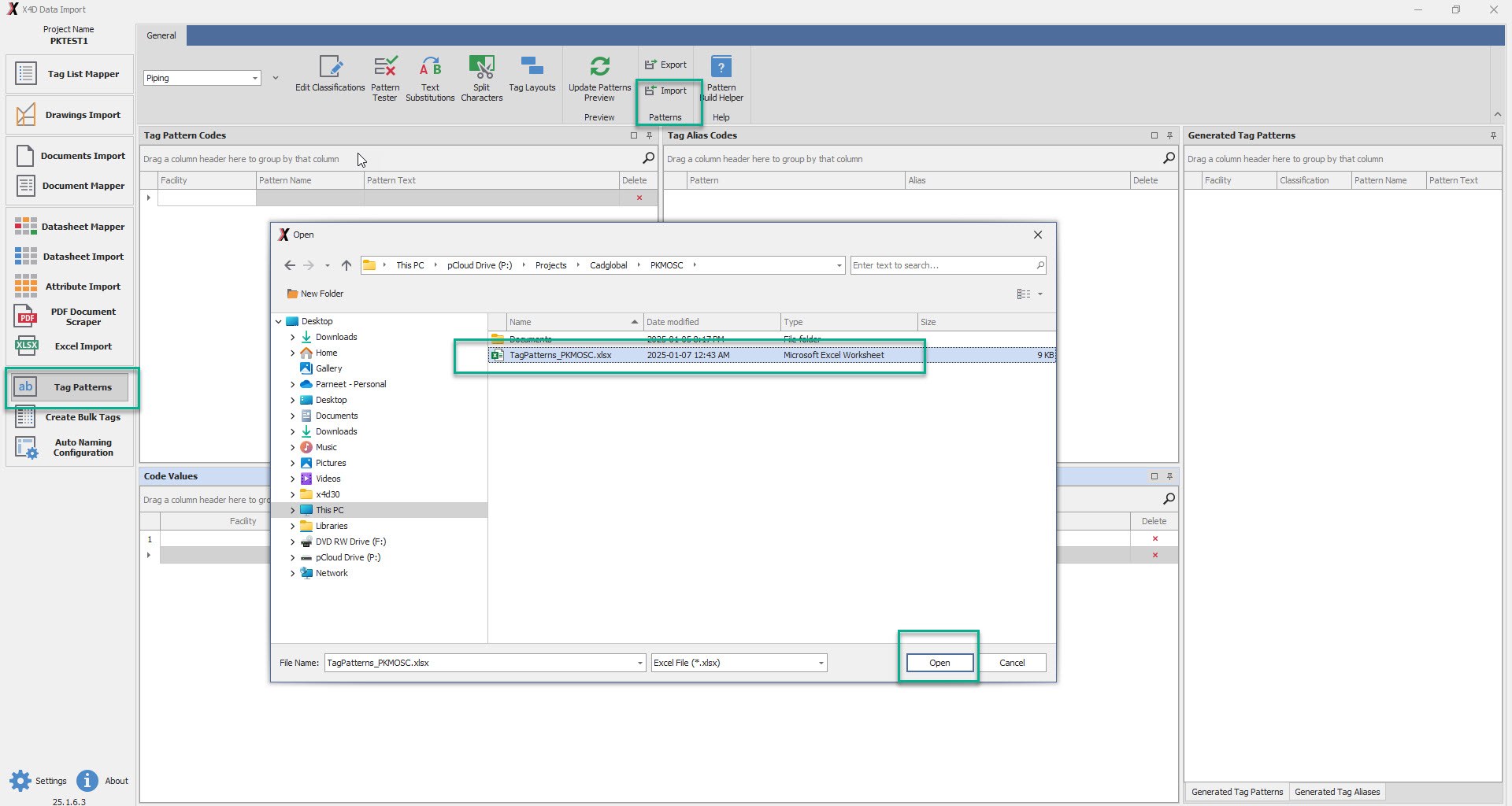
- On Tag Pattern screen there is an option of Import Patterns. By clicking that option the window pops up select
the xlsx file from the from another project and click Open.
-
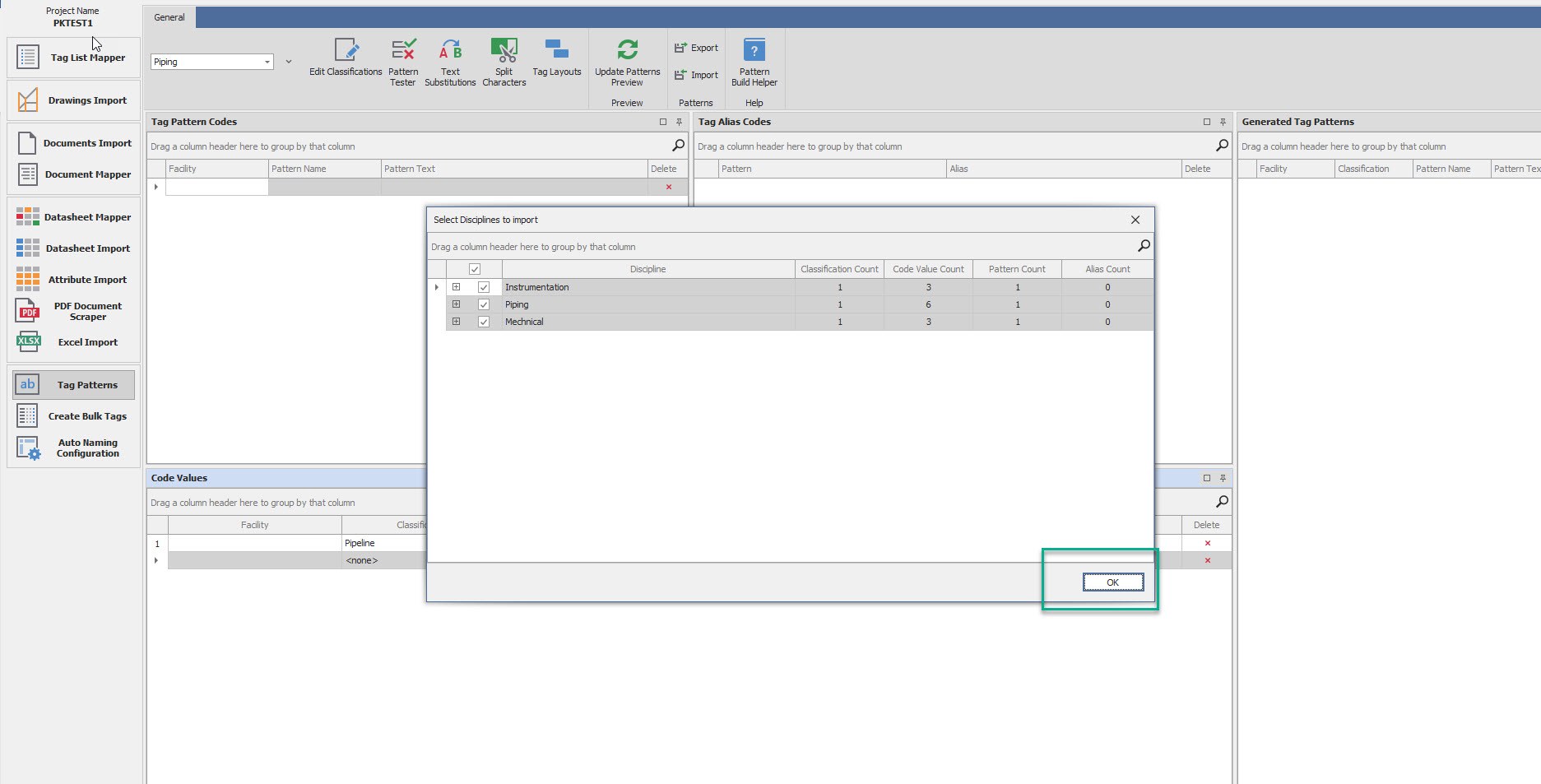
Select the Disciplines that are to be imported and click OK.
-
Once done, system would give a pop-up confirmation for the same.