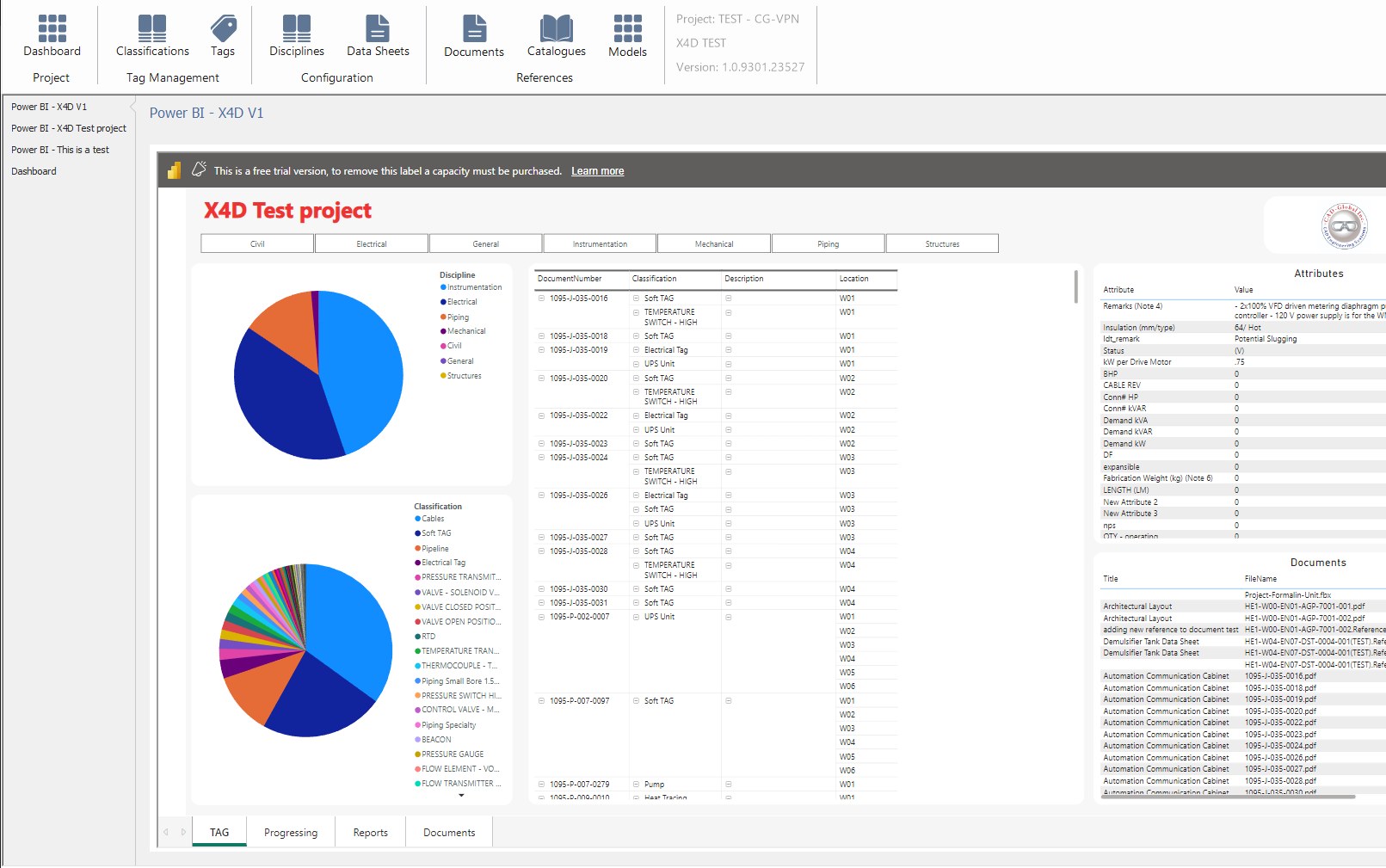
Power BI Integration
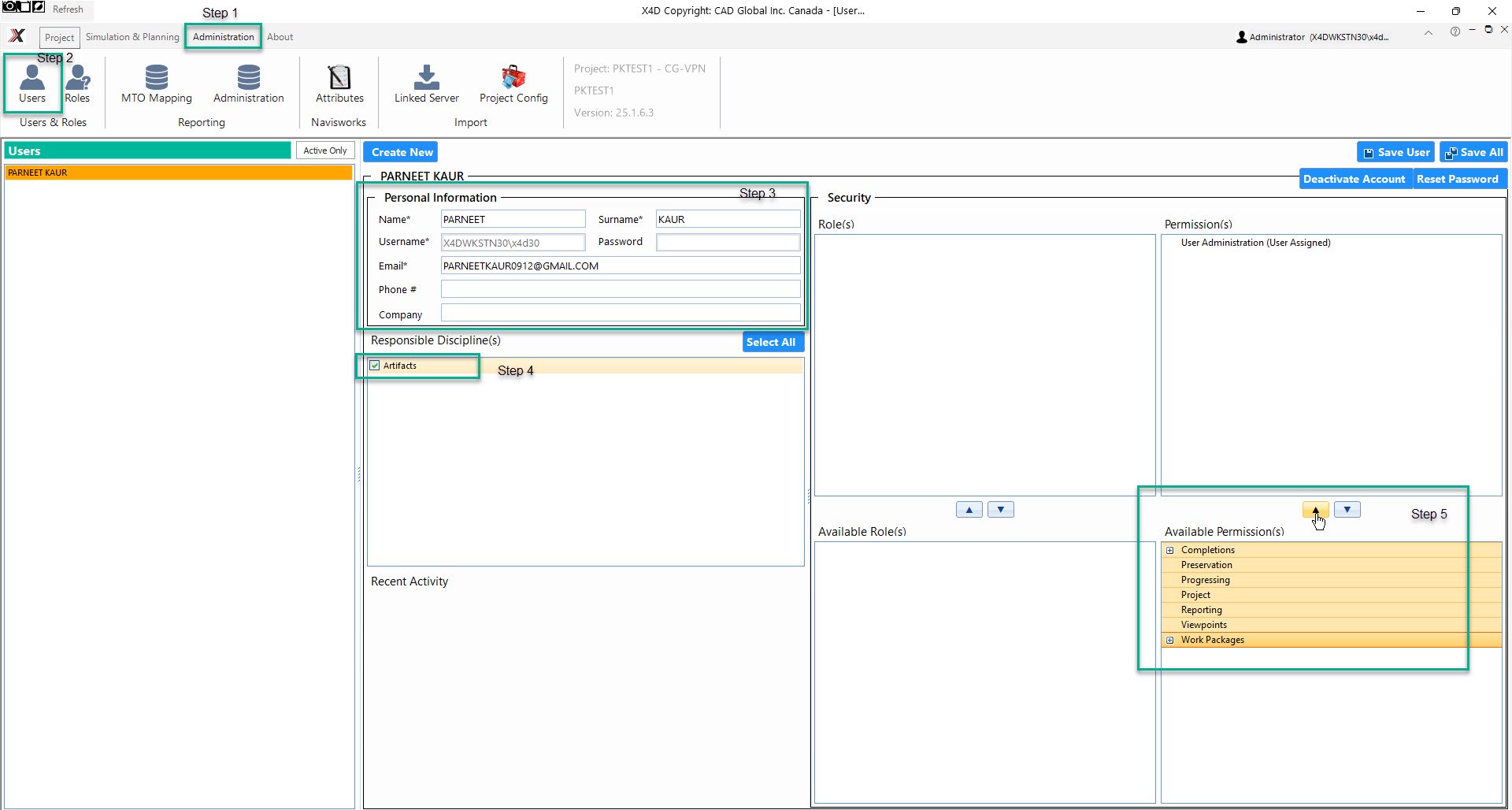
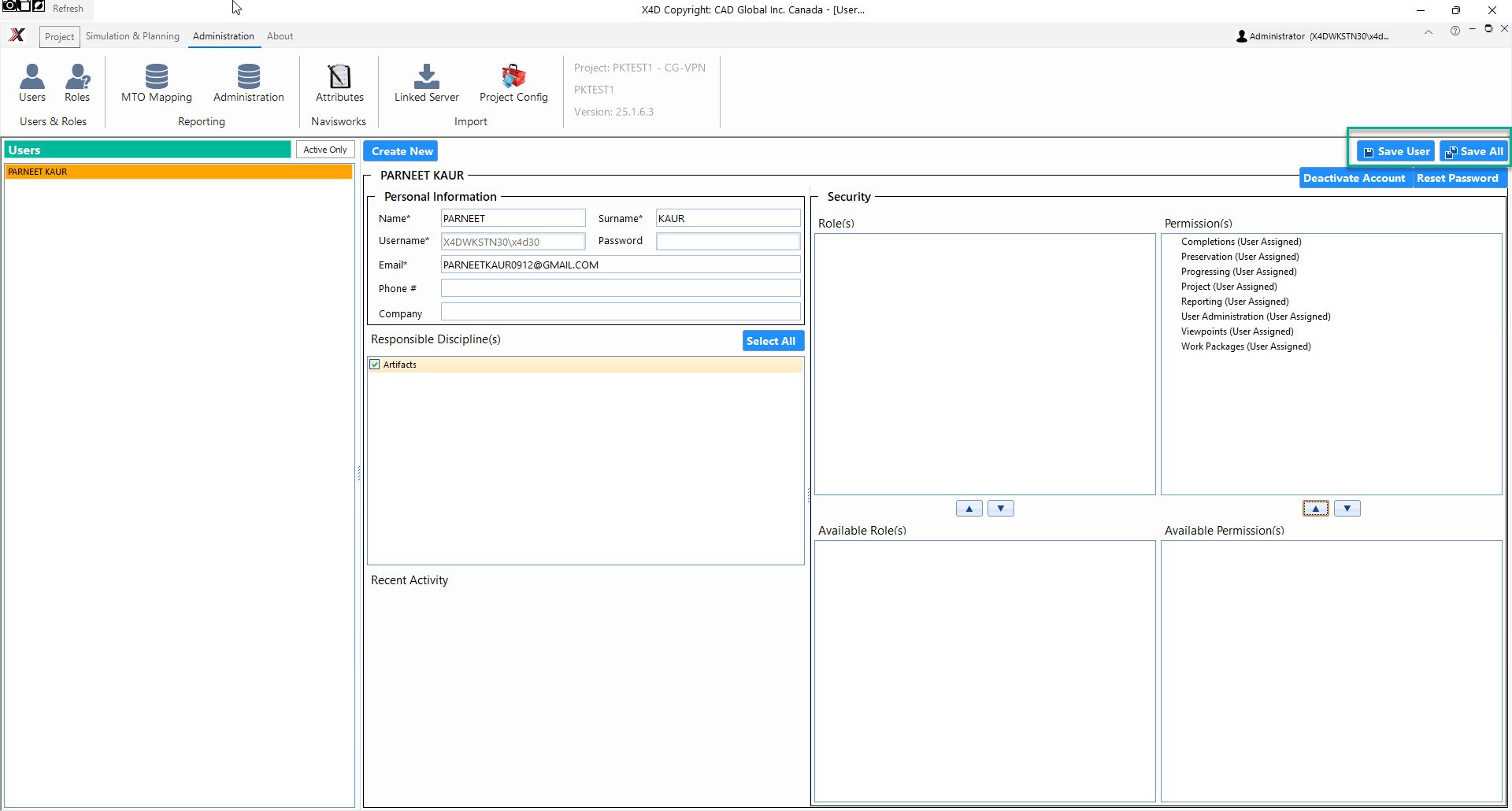
- Click on Save User and Save All
Power BI Integration
Power BI Integration Once the following topics are completed, X4D + Power BI Integration will work seamlessly:
- Azure App Registration
- Connection to X4D
- Power BI Workspace Setup
Azure App Registration
In Azure Portal - App Registration
-
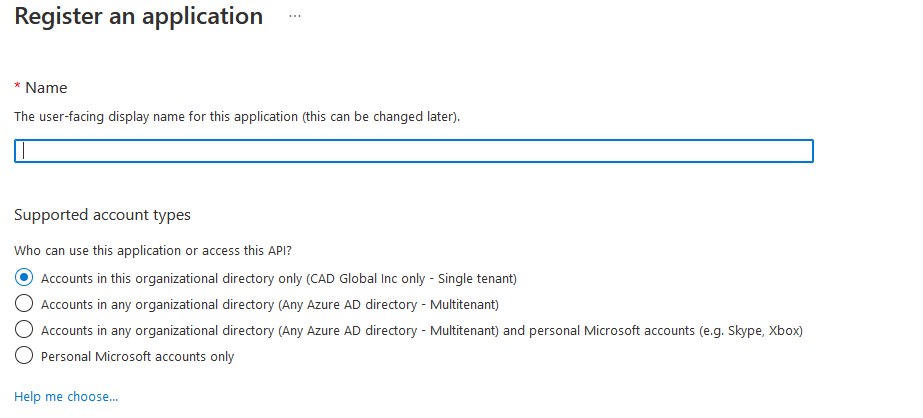
Register An Application in App Registrations
-
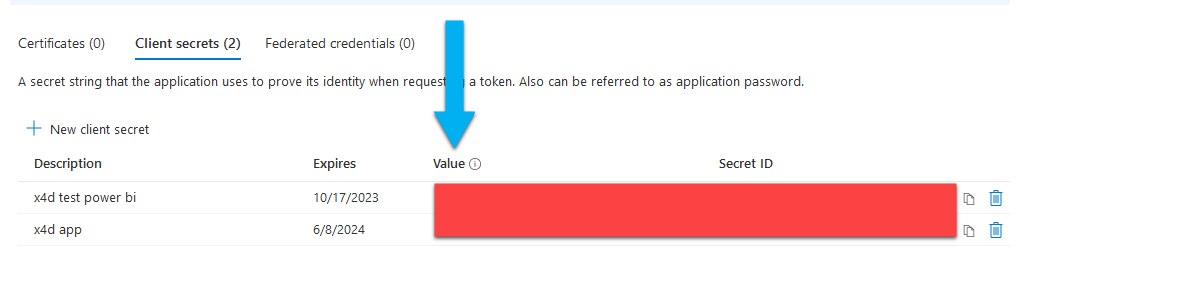
Record Directory (tenant) ID, Client Id
- Create and Record Client Secret
Connecting to X4D
Establish Connection to X4D
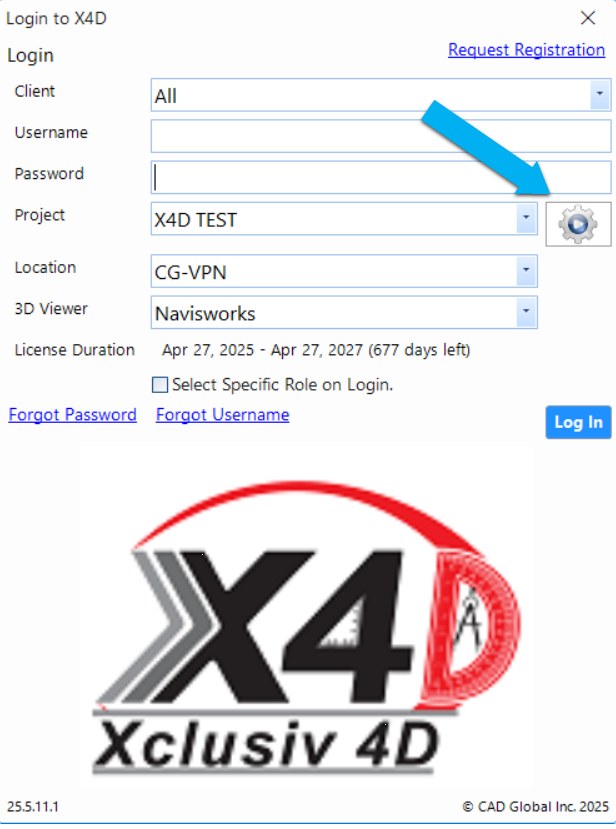
- Open X4D and Enter Project Settings in X4D Login Screen
- Select the project you would like to connect to Power BI Reports
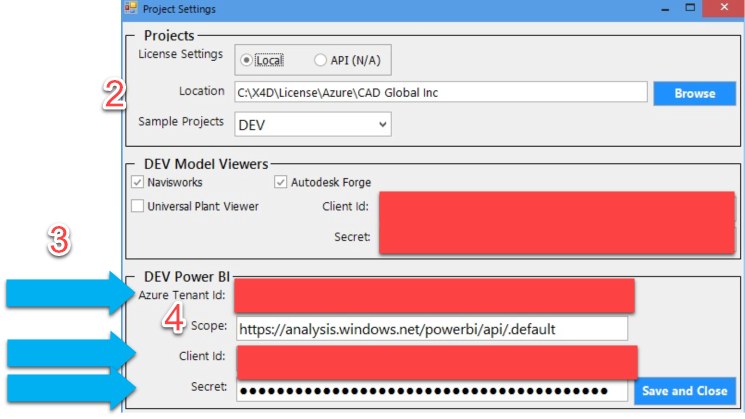
- Add Azure Tenant Id, Client Id and Secret to Project Settings
- Specify Scope, By Default https://analysis.windows.net/powerbi/api/default
Power BI Workspace Setup
Power BI Workspace Setup
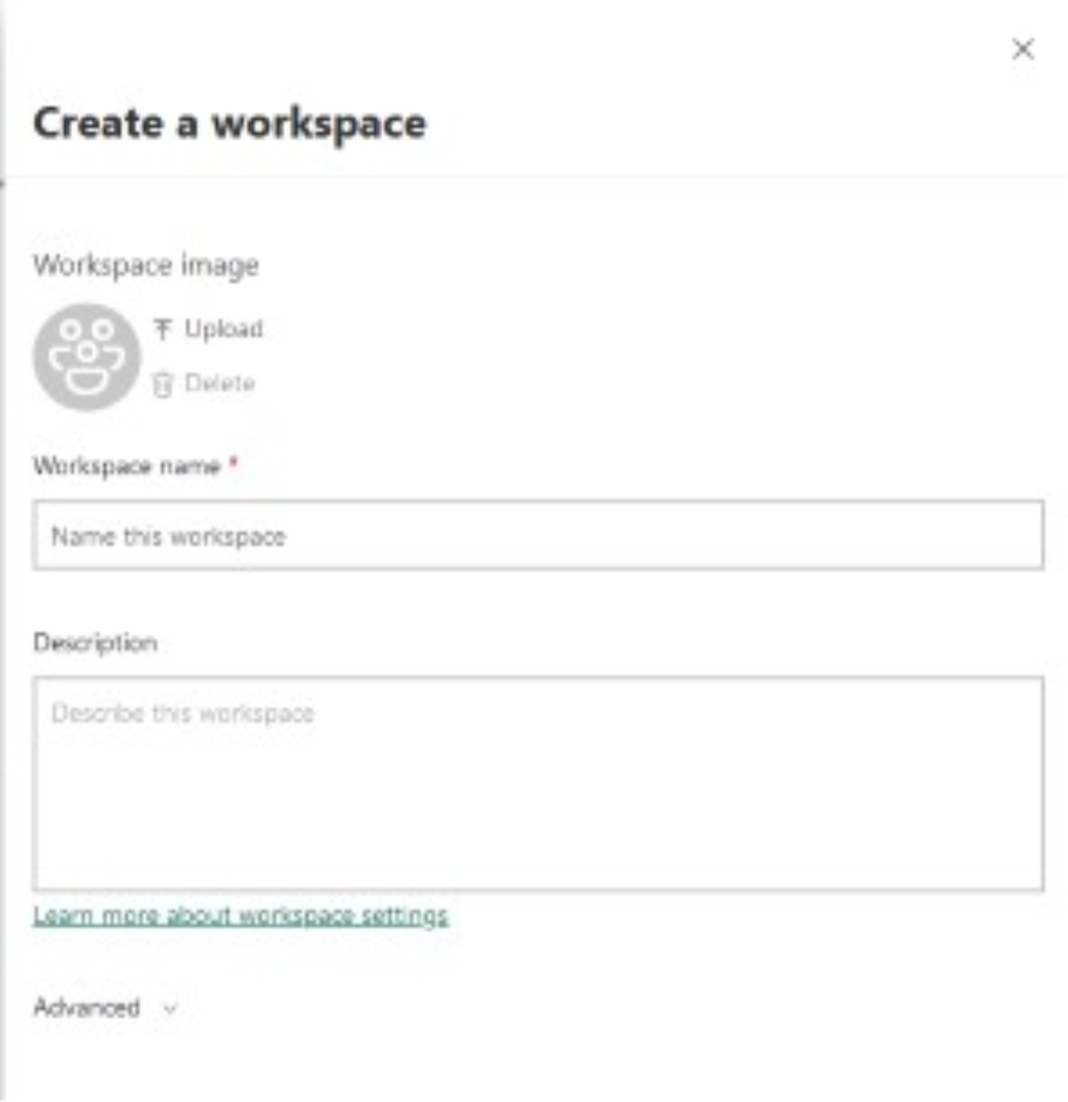
- Create A Workspace
-
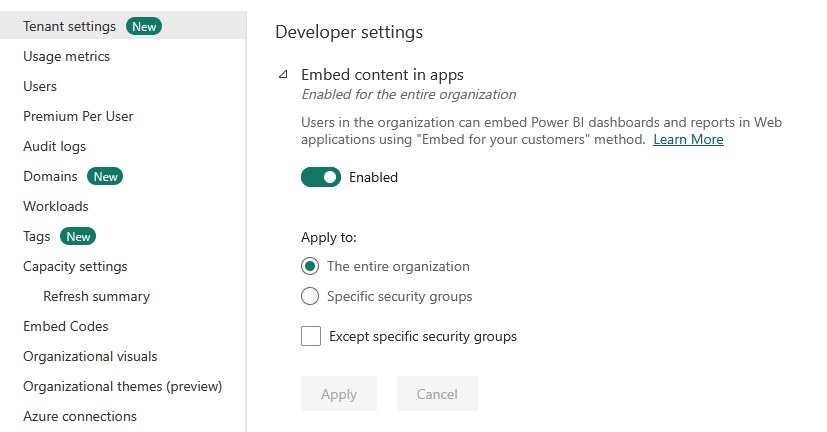
Enable embedding in Tenant Settings.
-
Add App Registration to Workspace Access with Member Permission.
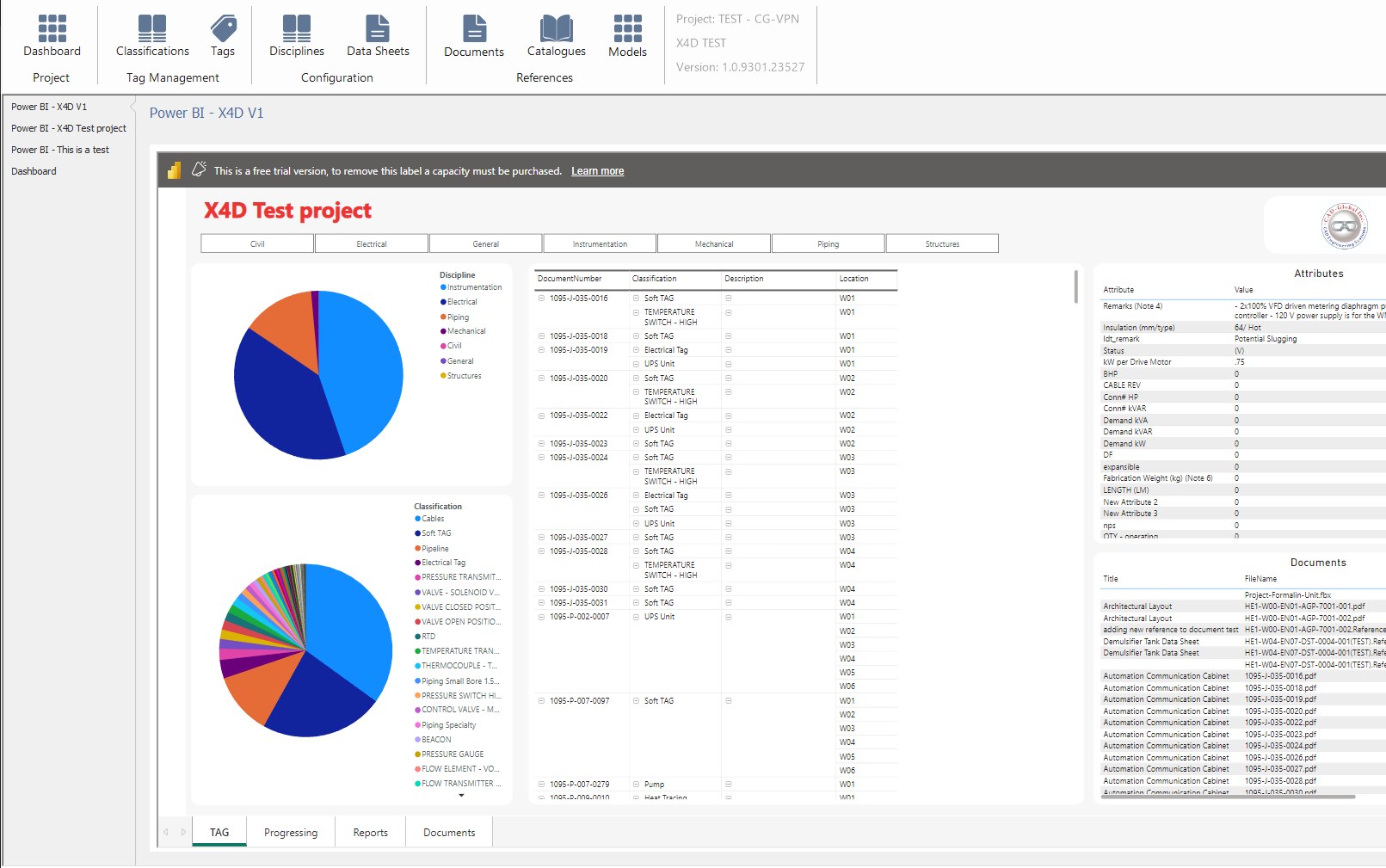
- Once this is done, you should see X4D Dashboards populated with Power BI Reports.
Diagnosing Issues
Diagnosing Issues
- If the app is not loading the Power BI Reports and has not produced any information, the client information in the project settings may be incorrect. Ø Ensure that the 4 Azure properties are filled out Ø Confirm that the client secret is the value of the secret and not the 32 digit GUID ID. Ø If there are still issues, please contact support.
- If an embedding error is shown, identify the workspace in the error and diagnose the following. Ø 'Forbidden': Embed settings may be turned off or the security group does not include the azure app registration. Ø 'Unauthorized': The App Registration in Power BI needs permissions elevated on the workspace. Ø 'Not Found': The workspace may have been deleted. Ø If there are still issues, please contact support.