Requests & Approvals
Request Registration
Request Registration
-
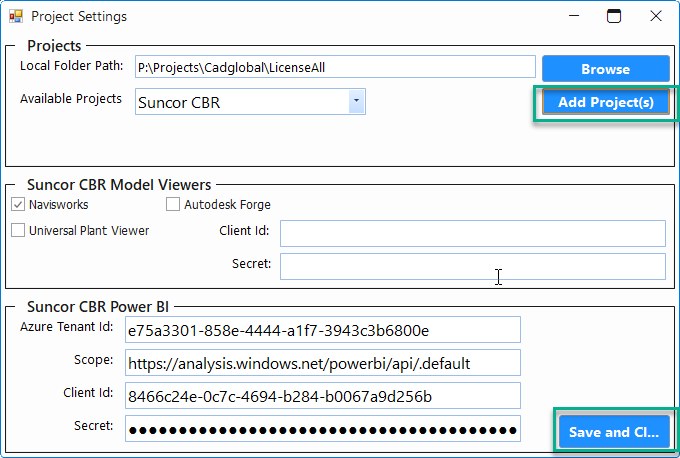
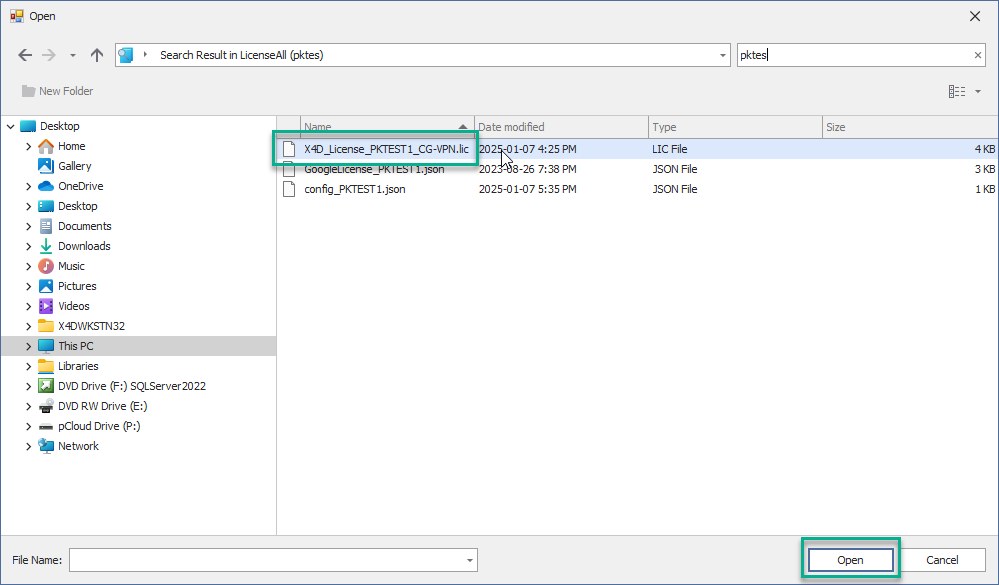
Add the project license on X4D for which the access is required.
-
Click on add projects and navigate to the path containing the X4D license for the project and select the required
license.
- Once selected click Open and click save and close.
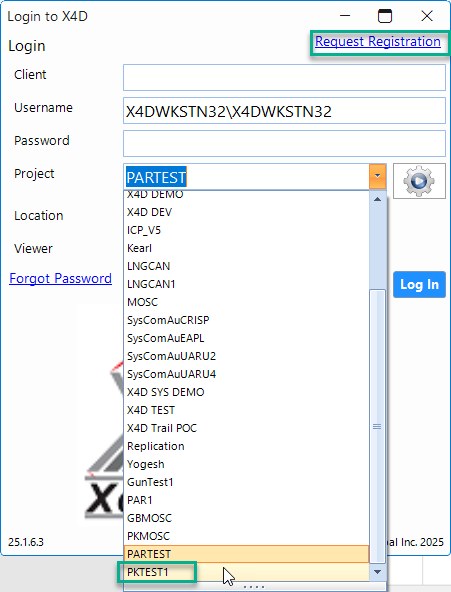
- Select the desired project from the dropdown.
- Click on the Request Registration button on the top of the X4D loggin screen.
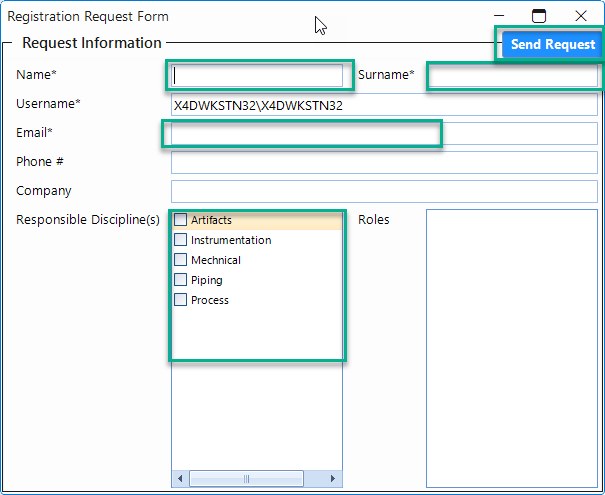
- Fill in the requested information in the Registration Request Form that pops up.
- Once all the details are filled and the requested Disciplines are selected, click send request.
-
Upon sucessful submission of the request the system would give the below confirmation pop up :
-
At this time the administrator would have to review the request and approve to grant the new user access to the
project.
Request Approval by Administrator
Request Approval by Administrator
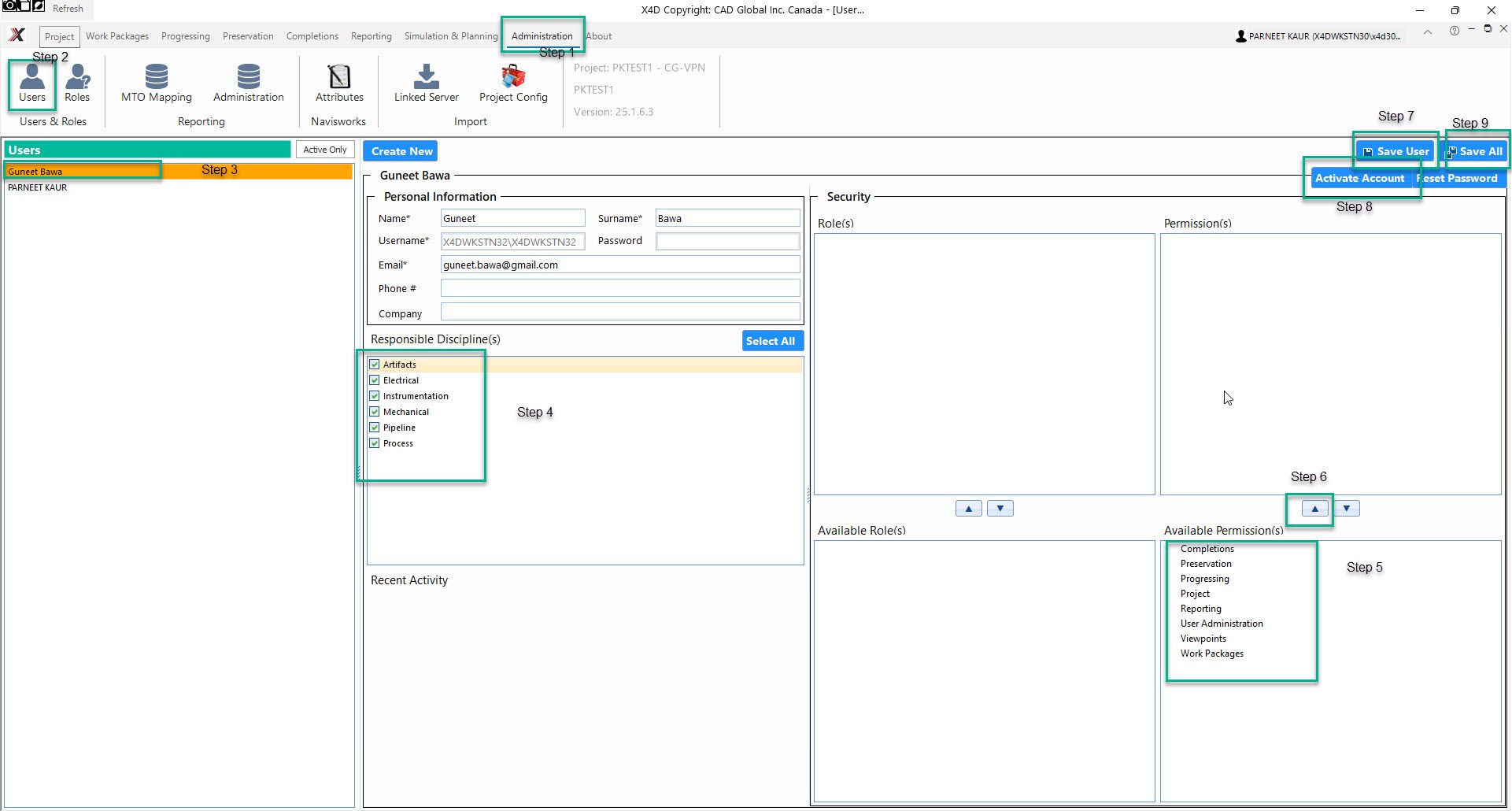
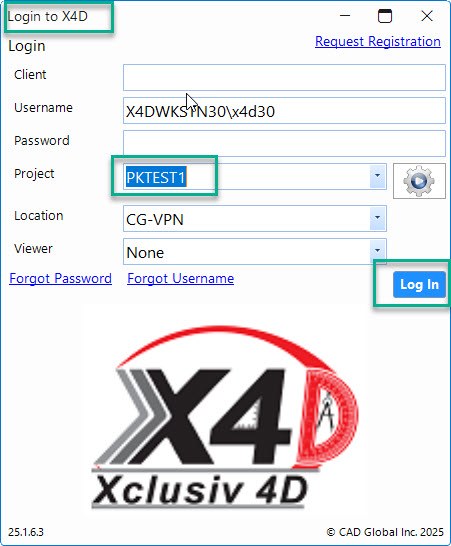
- Administrator will have to launch X4D app, Select the Project and Login
- After Logging in, Go to the Administration tab and click on Users.
- Here you will be able to select the pending Registration Request.
- Click on the name of the User and Select all the Responsible Discipline(s) that are to be assigned to that user.
- To grant permissions, select the Avalaible Permission(s) to be assigned and click on the arrow button to move
them to the Permission(s) section.
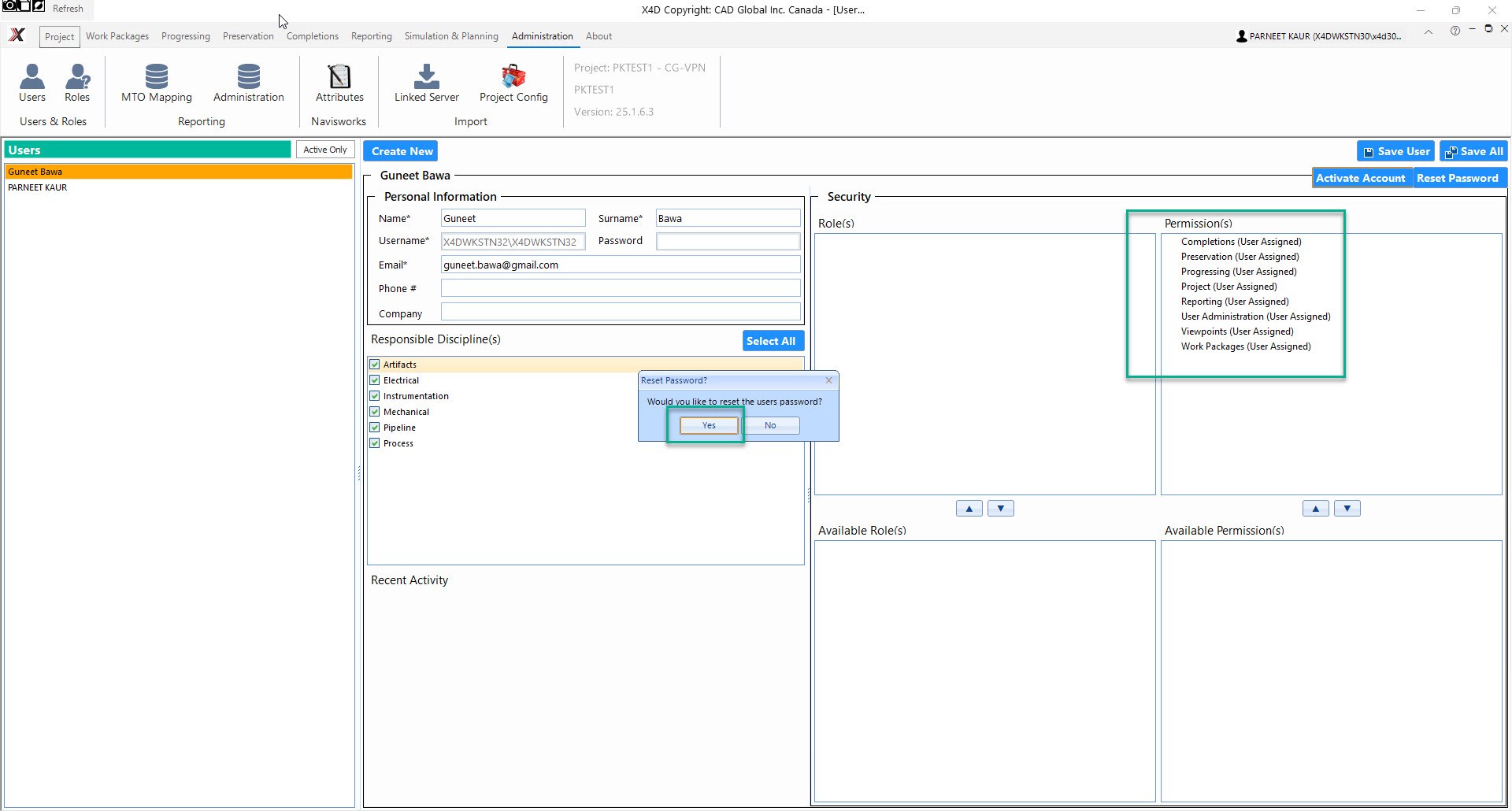
- Click on Save User and then hit Activate Account, this would pop up a prompt to reset the users password, click
Yes.
- Once the reset is successful, system would give a confirmation pop up. Click OK and then hit Save All